⚡️ W3CSS Paragraphs Content Block

W3CSS Paragraphs Drupal Content Block

The W3CSS Custom Block, a sub-module of the Drupal Module W3CSS Paragraphs, is a powerful and flexible tool designed to enhance the visual appeal and functionality of content on Drupal websites. This module leverages the capabilities of W3.CSS, a modern CSS framework, to offer a wide range of styling options. Its primary function is to allow users to reference Drupal block content within a stylized paragraph bundle, offering extensive customization through its user interface.

User Interface

The user interface of the W3CSS Custom Block is intuitively divided into two main tabs: Display and Content. Each tab is equipped with a set of fields allowing for detailed customization and styling.

Display Tab

The Display tab is focused on the visual aspects of the block, providing a plethora of options for colors, borders, margins, padding, and more.

  1. Background Colors: Users can select from 30 different colors to set as the background for their block. This provides a broad spectrum to match the website’s color scheme or to create distinct sections.
  2. Background Color Hover: Similar to the background colors, there are 30 color options available for hover states, enhancing the interactive experience.
  3. Text Colors: A selection of 30 different colors is also available for text, ensuring readability and design consistency.
  4. Text Color Hover: This field allows for the customization of text color when hovered over, with 30 options to choose from.
  5. Border Color: Users can select the border color from a palette of 30 different colors, adding definition and style to the block.
  6. Border Color Hover: For interactive border color changes on hover, 30 color options are available.
  7. Background Color Opacity: After selecting a background color, its opacity can be adjusted from 5% to 95% in increments of 10%. This feature offers 330 color variations and applies only to the background.
  8. Width: The width of the block can be adjusted, with options ranging from 30% to 100% of the container width.
  9. Borders: There are 11 different border styles to choose from, allowing for further customization.
  10. Round Borders: To soften or style edges, 6 round border styles are available.
  11. Margin: Users can select from 6 different margin styles to adjust the space around the block.
  12. Padding: There are 8 padding styles to choose from, affecting the space within the block.
  13. Box Shadow: For added depth, users can apply a 2px or 4px bordered shadow.
  14. W3.CSS Classes: An additional field is provided for users who wish to apply any specific w3.css classes for more customized styling.

Content Tab

The Content tab is dedicated to the actual content and structure of the block.

  1. Title: This field is for the content title, allowing users to label or headline their block.
  2. Entity Reference Field: This is used to reference the content block. Users can link to an existing Drupal block, integrating its content within the styled W3CSS Custom Block.

Summary

The W3CSS Custom Block module stands out for its extensive customization capabilities, allowing Drupal users to create visually appealing and interactive content blocks with ease. Its intuitive interface, combined with the power of W3.CSS, makes it a valuable tool for web designers and content managers looking to elevate the aesthetic and functional aspects of their Drupal sites.

This is a content block was created in blocks and referenced here.

Biscay Green

"The more that you read, the more things you will know. The more that you learn, the more places you’ll go."

Dr. Seuss

Display Button for Drupal Content bundle

Block Content
Austin TX Drupal Developer
Drupal Architect
Drupal Consultant
Drupal Custom Work
Drupal Developer
Drupal Themer
Hire Drupal Developer
Pflugerville Drupal Developer
Senior Drupal Developer

⚡️ W3CSS Paragraphs Drupal Block

⚡️ W3CSS Paragraphs Drupal Block

The "W3CSS Drupal Block," a sub-module within the Drupal Module "W3CSS Paragraphs," represents a comprehensive tool for web developers and site designers using Drupal, a popular content management system. This module is particularly useful for those looking to integrate stylish and responsive design elements into their Drupal site with ease. Below is a detailed description of its features, organized under two primary user interface tabs: Display and Content.

Display Tab

The Display tab offers a wide range of customization options for the appearance of the paragraph bundle:

  1. Background Colors: Users can choose from 30 different colors to set as the background for their paragraph bundle.
  2. Background Color Hover: This feature allows the selection of one out of 30 color options that will appear when the mouse hovers over the paragraph bundle.
  3. Text Colors: There are 30 different text color options available to match the overall design of the page or to create a contrast with the background.
  4. Text Color Hover: Similar to the background color hover, this feature provides 30 color options for the text when hovered over.
  5. Border Color: Users can select from 30 different colors for the border of the paragraph bundle.
  6. Border Color Hover: This option allows for the choice of hover color from 30 available options for the border.
  7. Background Color Opacity: After selecting a background color, users can adjust its opacity between 5% and 95% in increments of 10%, offering 330 color variations. This feature applies only to the background color.
  8. Width: The width of the paragraph bundle can be adjusted, with options ranging from 30% to 100%.
  9. Borders: There are 11 different border styles to choose from, enhancing the design flexibility.
  10. Round Borders: This feature offers 6 styles for creating round borders.
  11. Margin: Users can select from 6 different styles to adjust the margin.
  12. Padding: There are 8 different padding styles available for further customization.
  13. Box Shadow: Users can add a 2px or 4px bordered shadow to the paragraph bundle for depth and emphasis.
  14. Custom W3.CSS Classes: There is also a field to add any custom W3.CSS classes for additional styling options.

Content Tab

The Content tab focuses on the content aspects of the paragraph bundle:

  1. Title: Users can enter a title for the content of the paragraph bundle. This is essential for organizational and SEO purposes.
  2. Entity Reference Field: This field is used to reference any Drupal core block. It allows users to integrate existing blocks within the Drupal system into the paragraph bundle, enhancing the module's flexibility and utility.

The "W3CSS Drupal Block" sub-module is a powerful tool for Drupal users, combining extensive customization options with ease of use. It is ideal for users who want to create visually appealing, responsive, and interactive web pages without needing to delve into complex coding. By offering a wide range of stylistic choices and the ability to integrate core Drupal blocks, this module significantly enhances the capabilities of the Drupal W3CSS Paragraphs module.

Drupal Core Block

Display Button for Drupal Block

Drupal Block
Austin TX Drupal Developer
Drupal Architect
Drupal Consultant
Drupal Custom Work
Drupal Developer
Drupal Themer
Hire Drupal Developer
Pflugerville Drupal Developer
Senior Drupal Developer

⚡️ W3CSS Paragraphs Contact Form

W3CSS Paragraphs Contact Form

The W3CSS Contact bundle, a sub-module within the Drupal Module W3CSS Paragraphs, represents a robust and versatile tool for web developers and designers using Drupal. This bundle is specifically tailored to integrate and display contact forms in a visually appealing and customizable manner. To utilize its full functionality, the Contact Formatter Drupal module must be installed.

Display Tab Features:

  1. Background Colors:
    • Offers a selection of 30 different colors.
    • Enables users to personalize the background color of the contact section to match the website’s theme or to stand out.
  2. Background Color Hover:
    • Provides 30 color options available for hover states.
    • Enhances user interaction by changing the background color when hovered over.
  3. Text Colors:
    • Includes 30 different color options for text.
    • Allows for a harmonious or contrasting text color selection based on the chosen background.
  4. Text Color Hover:
    • Presents 30 color options for text on hover.
    • Improves readability and user engagement upon hovering.
  5. Border Color:
    • Offers a choice of 30 different colors for borders.
    • Useful for defining the boundary or emphasizing the contact section.
  6. Border Color Hover:
    • Features 30 color options available for border color changes on hover.
    • Adds an interactive element to the contact section borders.
  7. Background Color Opacity:
    • After selecting a background color, users can adjust the opacity from 5% to 95% in increments of 10%.
    • This feature provides 330 color variations, exclusively affecting the background color.
    • Enhances the visual appeal by allowing background blending with underlying content or images.
  8. Width:
    • Options range from 30% to 100%.
    • Enables users to control the width of the contact section, ensuring it fits seamlessly into various layouts.
  9. Borders:
    • Choose from 11 different border styles.
    • Offers a range of styles from simple lines to more intricate designs.
  10. Round Borders:
    • 6 styles available for rounded borders.
    • Adds a softer, more modern look to the contact section.
  11. Margin:
    • 6 margin styles available.
    • Facilitates spacing adjustments around the contact section for a balanced layout.
  12. Padding:
    • Choose from 8 different padding styles.
    • Ensures content within the contact section has adequate space from the edges for better readability.
  13. Box Shadow:
    • Option to add a 2px or 4px bordered shadow.
    • Creates a subtle depth effect, making the contact section more prominent.
  14. W3.CSS Classes:
    • Additional field to apply any W3.CSS classes.
    • Provides further customization and styling options by leveraging W3.CSS’s extensive class library.

Content Tab Features:

  1. Title:
    • A field to input the content title.
    • Allows users to add a descriptive or catchy title to the contact section.
  2. Entity Reference Field:
    • To reference and display the contact form.
    • Seamlessly integrates a Drupal contact form into the paragraph bundle.

In summary, the W3CSS Contact bundle offers a comprehensive set of customization options that enable web developers to create visually appealing and interactive contact sections in their Drupal site. With a wide range of color, style, and layout choices, it ensures that the contact form can be seamlessly integrated while maintaining the site's aesthetic integrity and enhancing user engagement.

Contact Form

CAPTCHA
This question is for testing whether or not you are a human visitor and to prevent automated spam submissions.

Display Button for the Image bundle

Contact Form
Austin TX Drupal Developer
Drupal Architect
Drupal Consultant
Drupal Custom Work
Drupal Developer
Drupal Themer
Hire Drupal Developer
Pflugerville Drupal Developer
Senior Drupal Developer

⚡️ W3CSS Paragraphs Responsive Image (Narrow)

The W3CSS Image Narrow is a specialized sub-module within the Drupal Module W3CSS Paragraphs, designed specifically to create and manage responsive, narrow (square) images within a Drupal environment. This bundle leverages Drupal core modules such as media, media library, and responsive image to offer a robust and versatile tool for website developers and content managers. Here's a detailed breakdown of its features and capabilities:

Display Tab

Under the display tab, users have a wide array of customization options, allowing for a high degree of control over the appearance of the image and its surrounding elements.

  1. Background Colors:
    • Offers a selection of 30 different colors for the background.
    • Enhances the visual appeal and can be matched with the site's color scheme.
  2. Background Color Hover:
    • Includes 30 color options for hover states, adding interactive elements to the user experience.
  3. Text Colors:
    • Provides 30 color choices for text, ensuring readability and design cohesion.
  4. Text Color Hover:
    • 30 color options for text hover states, enhancing user interaction.
  5. Border Color:
    • A palette of 30 colors is available for border customization.
  6. Border Color Hover:
    • Offers 30 colors for borders on hover, adding dynamic visual effects.
  7. Background Color Opacity:
    • Adjust the opacity of the background color from 5% to 95% in 10% increments.
    • With 330 color variations, this feature allows for precise control over the transparency and blending with the site's design.
  8. Width:
    • Options range from 30% to 100%, offering flexibility in image scaling and layout integration.
  9. Borders:
    • Choose from 11 different styles to define the image's perimeter.
  10. Round Borders:
    • Includes 6 styles, adding a modern and soft edge to the images.
  11. Margin:
    • Comes with 6 styles, aiding in the placement and spacing relative to other elements.
  12. Padding:
    • Offers 8 different styles, allowing for space control within the element.
  13. Box Shadow:
    • Add a 2px or 4px bordered shadow for depth and emphasis.

Content Tab

The content tab focuses on the image content and its associated features.

  1. Title:
    • Allows for a content title, providing context or additional information.
  2. Media Field:
    • Facilitates image upload.
    • Includes fields for 'Alternative Text' and 'Title', enhancing accessibility and SEO.
  3. Link Field:
    • Optional; makes the image clickable, useful for navigation or linking to additional content.
  4. Image Link Title Field:
    • This is the title attribute of the image link, offering additional information on hover and improving accessibility.

Use Cases and Applications

The W3CSS Image Narrow bundle is ideal for creating visually striking, responsive image elements in Drupal websites. Its extensive customization options make it suitable for a wide range of applications, from simple image displays to complex, interactive content blocks. The ease of integration with Drupal’s core features ensures that both developers and content managers can efficiently utilize this bundle, enhancing the overall user experience and aesthetic appeal of the website.

Display Button for the Responsive Image bundle

Responsive Image Narrow
Austin TX Drupal Developer
Drupal Architect
Drupal Consultant
Drupal Custom Work
Drupal Developer
Drupal Themer
Hire Drupal Developer
Pflugerville Drupal Developer
Senior Drupal Developer

⚡️ W3CSS Paragraphs Default Template

W3CSS Paragraphs Default Template

This is the default template for any paragraph bundle does not have any custom template, Content and Display.

Display Button for the Image bundle

W3CSS Image
Austin TX Drupal Developer
Drupal Architect
Drupal Consultant
Drupal Custom Work
Drupal Developer
Drupal Themer
Hire Drupal Developer
Pflugerville Drupal Developer
Senior Drupal Developer

W3CSS Theme Documentation

W3CSS Theme Settings/Configuration

Alaa Haddad

Some configurations have a video, you can click on "watch video"

⚡️ How to install W3CSS Theme - Watch Video

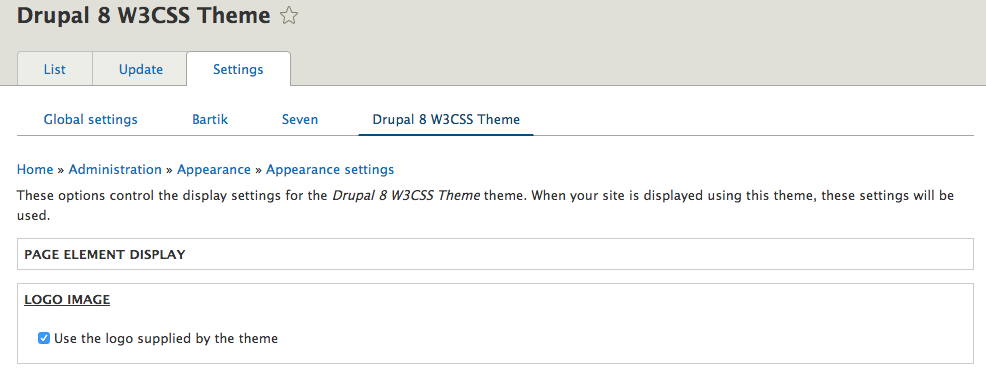
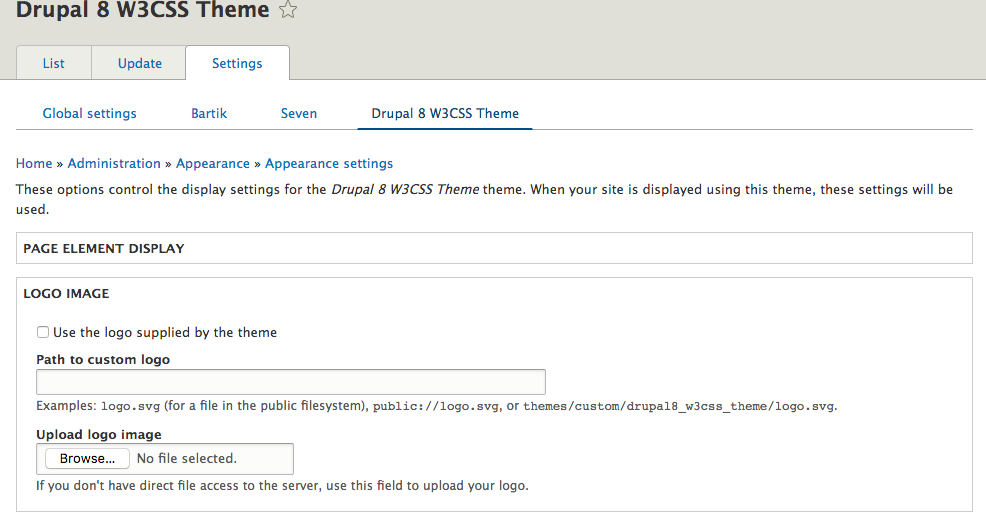
Download the theme to your-drupal-site-name/themes/ and go to your-site-domain/admin/appearance and scroll to the bottom until you see W3CSS Theme and click on Install and set as default and click save.

Go to your-drupal-site-name/admin/appearance/settings/drupal8_w3css_theme and uncheck “Use the logo supplied by the theme” then upload your own website logo they insert the path in logo text "Path to custom logo" box and click save. Logo size is fixed. If you want to change the logo's size you will have to change it in the sub theme.

Change logo

Change the logo

⚡️ How to enable page title

Go to your-drupal-site-name/admin/structure/block and scroll down until you see Page Title's region. Page Title block is disabled by default, just click on Enable to enable the page title.

Change logo

back to top ☝️

⚡️ How to enable site slogan - Watch Video

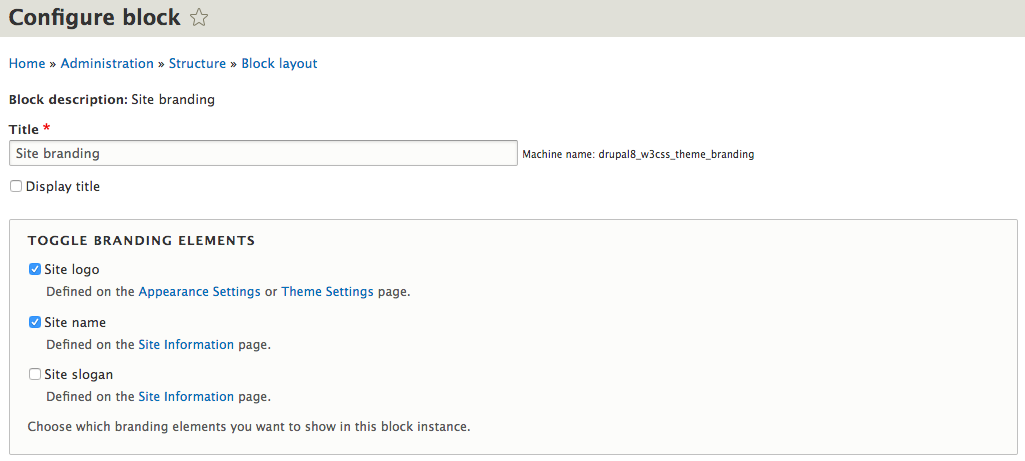
Go to your-drupal-site-name/admin/structure/block and in header region. You should see two blocks User account menu and Site branding. Click on configure for Site branding and check the check box for Site Slogan.

Change logo

back to top ☝️

⚡️ CSS Text Animation Effects Classes | W3CSS Theme V2

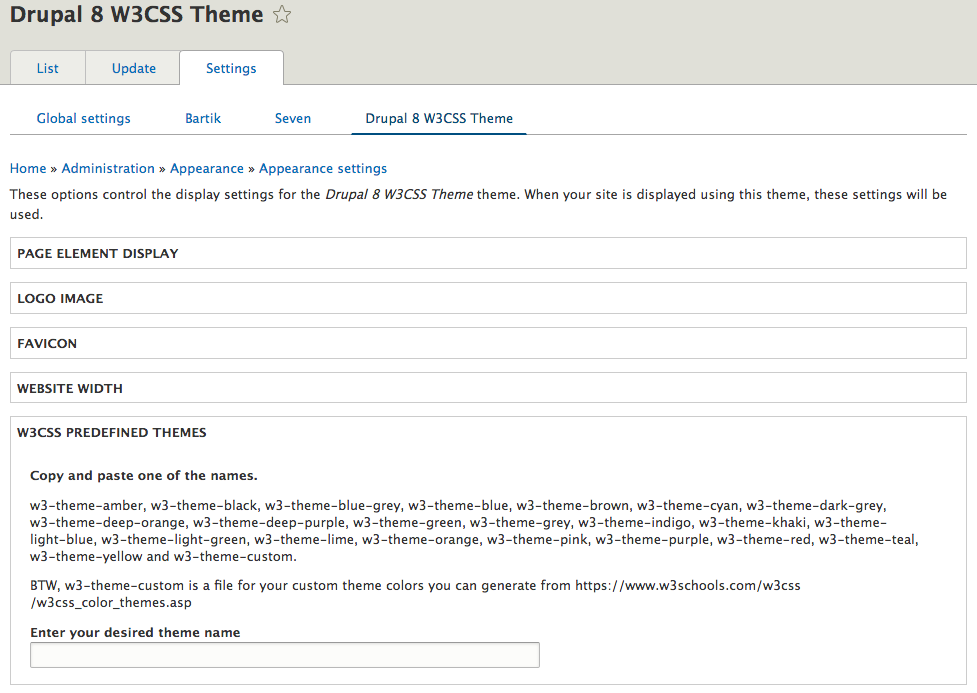
Go to your-drupal-site-name/admin/appearance/settings/drupal8_w3css_theme and click on CSS TEXT ANIMATION EFFECTS - W3CSS THEME to expand it. You can choose the animation for the site name or page title. Also you will see the css text animation effect classes that you can use with any html tag.

Example: <p class="animate-text-00"> Text goes here</p>

Change Font

back to top ☝️

⚡️ How to enable/disable region border animation? | W3CSS Theme V2

Go to your-drupal-site-name/admin/appearance/settings/drupal8_w3css_theme and click on ENABLE BORDER ANIMATION - W3CSS THEME to expand it. There is a checkbox to enable/disable the border animation for top regions, bottom regions and footer regions.

Change Font

back to top ☝️

⚡️ How to expand multi items field to 100%? | W3CSS Theme V2

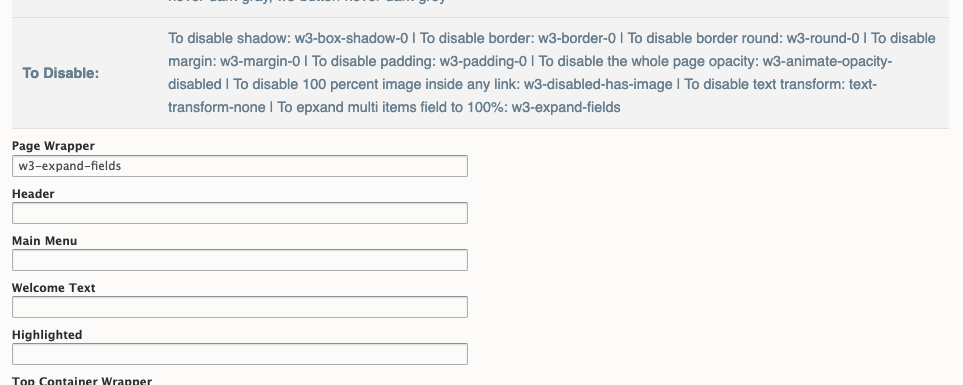
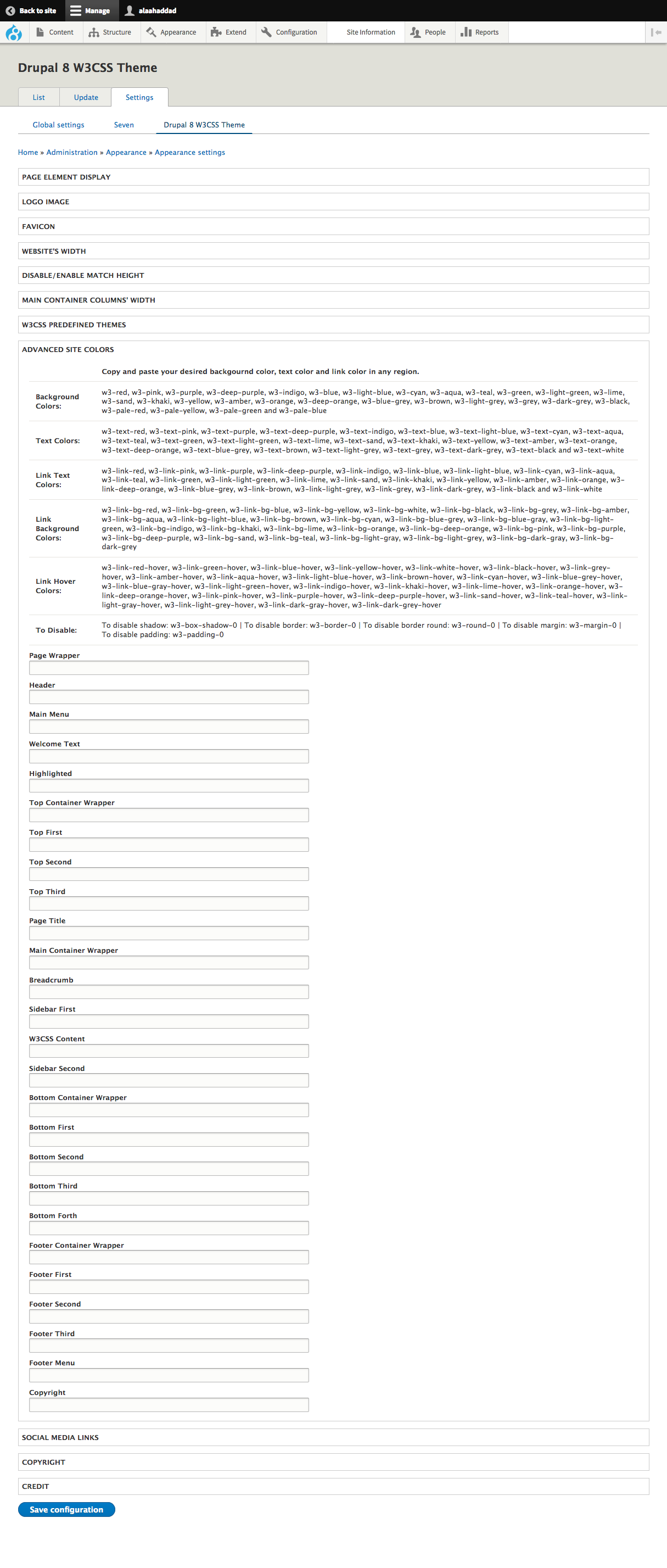
By default, any drupal field with multiple items (like taxonomy, file, user etc. ) will display those items in one line. If you want to change that, go to your-drupal-site-name/admin/appearance/settings/drupal8_w3css_theme and click on ADVANCED SITE COLORS - W3CSS THEME to expand it then add w3-expand-fields to Page Wrapper field.

w3 epxand fields 2

w3 epxand fields

w3 epxand fields 1

back to top ☝️

⚡️ How to change the favicon

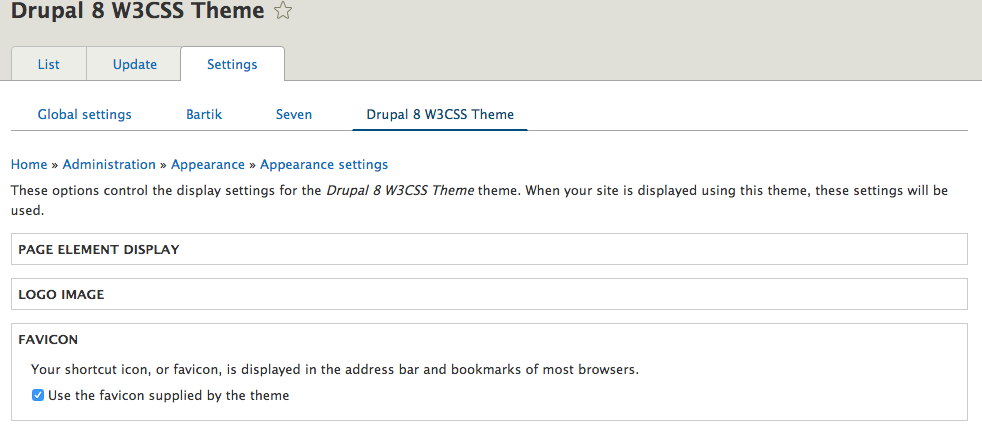
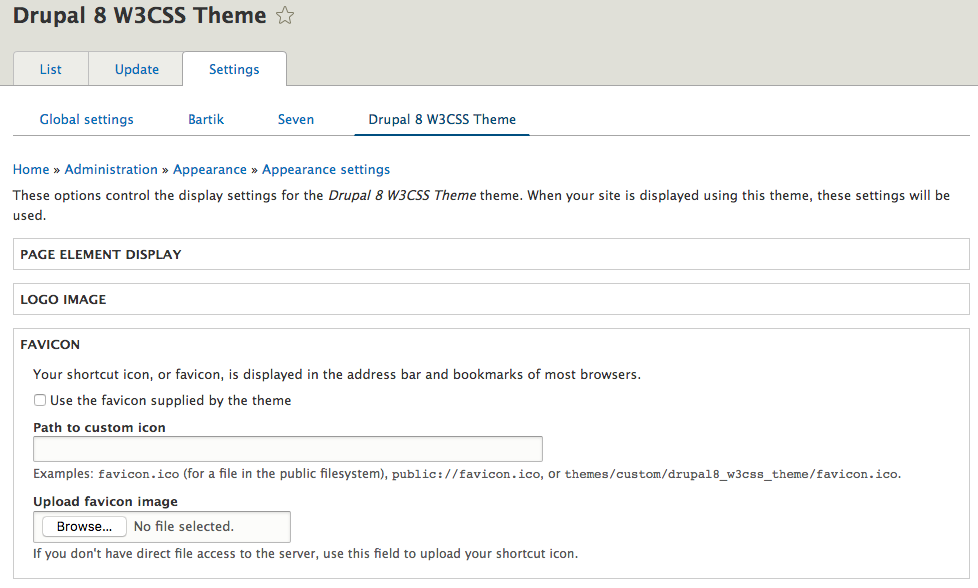
Go to your-drupal-site-name/admin/appearance/settings/drupal8_w3css_theme and uncheck “Use the favicon supplied by the theme” then upload your own favicon and click save.

Change Favicon

Change the favicon

back to top ☝️

⚡️ How to change the whole website width - Watch Video

In W3CSS Theme V2 was changed to a dropdown select list.

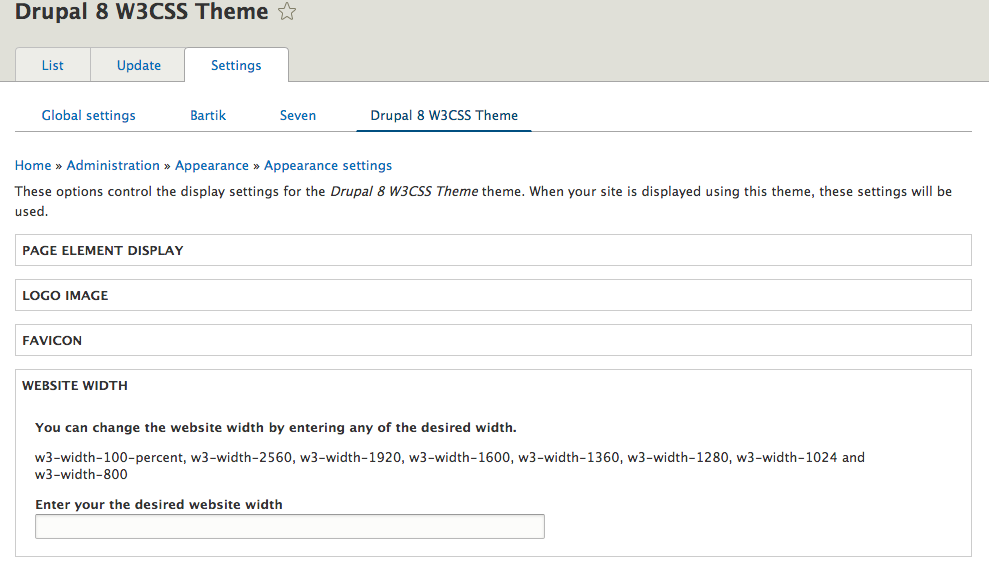
Go to your-drupal-site-name/admin/appearance/settings/drupal8_w3css_theme and click on Website Width to expand it. Copy and paste your desired website width and click save.

Change website width

back to top ☝️

⚡️ How to change website font or heading font? | W3CSS Theme V2

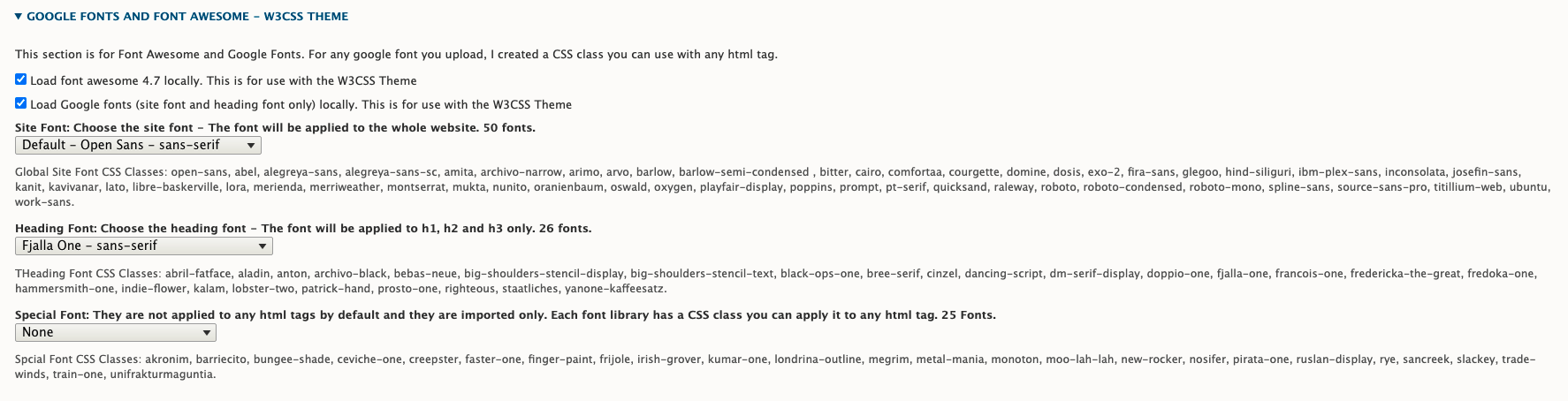
Go to your-drupal-site-name/admin/appearance/settings/drupal8_w3css_theme and click on GOOGLE FONTS AND FONT AWESOME - W3CSS THEME to expand it. You can choose the site font or heading font.

Special font are not applied to any html tage by default. You just choose the font then use the css class with any html tag.

Tip: Any font you choose for the site or heading will have a CSS class that you can apply to any html tag.

Example: If I have chosen the font "Anton" for the heading and I want to apply this font to a paragraph, here is how it's done;

<p class="anton"> Text goes here</p>

Change Font

back to top ☝️

⚡️ How to add google font to any custom sub-theme?

I will be using in this example google lexend. https://fonts.google.com/specimen/Lexend

  1. Open your-sub-theme-name.libraries.yml and add:

    google-font-ex-lexend:
    Version: VERSION
    css:
    base:
    'https://fonts.googleapis.com/css2?family=Lexend&display=swap': { type: external, minified: true }
     

    Change Font

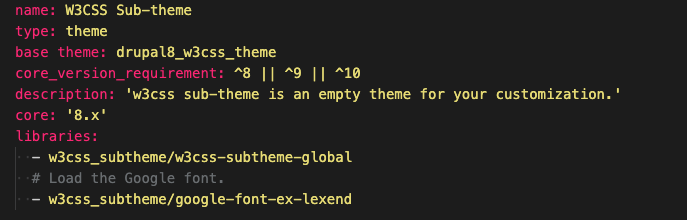
  2. Open your-sub-theme-name.info.yml and add:

    - w3css_subtheme/google-font-ex-lexend
     

    Change Font

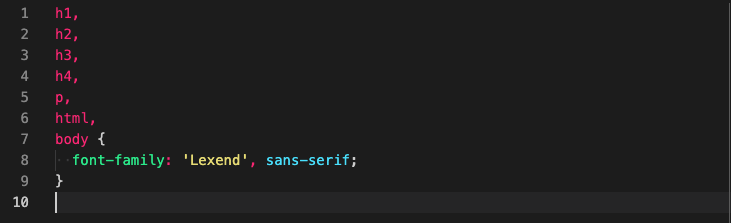
  3. Open your-sub-theme/css/style.css and add:

    h1,
    h2,
    h3,
    h4,
    p,
    html,
    body {
    font-family: 'Lexend', sans-serif;
    }

    Change Font

back to top ☝️

⚡️ How to use the w3css predefined color themes - Watch Video

In W3CSS Theme V2 was changed to a dropdown select list.

Go to your-drupal-site-name/admin/appearance/settings/drupal8_w3css_theme and click on  w3css predefined color themes to expand it.  Copy and paste any of your desired w3css color theme and click save.  FYI: if you have any w3 classes in Advanced Site Color Section they will not override the uploaded color theme because of the CSS order.  Any predefined theme file it will be loaded after w3.css.

Upload a new predefined theme

back to top ☝️

⚡️ How to change website colors - Watch Video

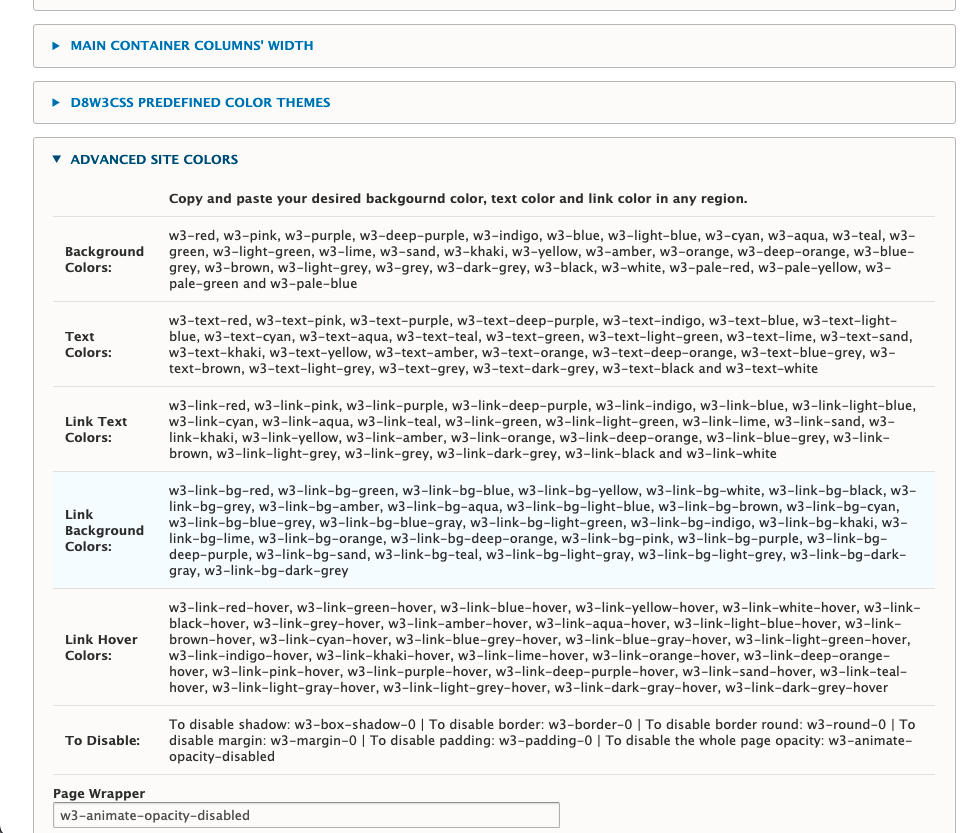
Go to your-drupal-site-name/admin/appearance/settings/drupal8_w3css_theme and click on Advanced Site Colors to expand it.  Each section in the website can be modified and click save.  You can change the text color, background color, padding, margin or borders.  You can use any of W3 CSS Classes https://www.w3schools.com/w3css/w3css_references.asp

Color Guidance

Change website colors

back to top ☝️

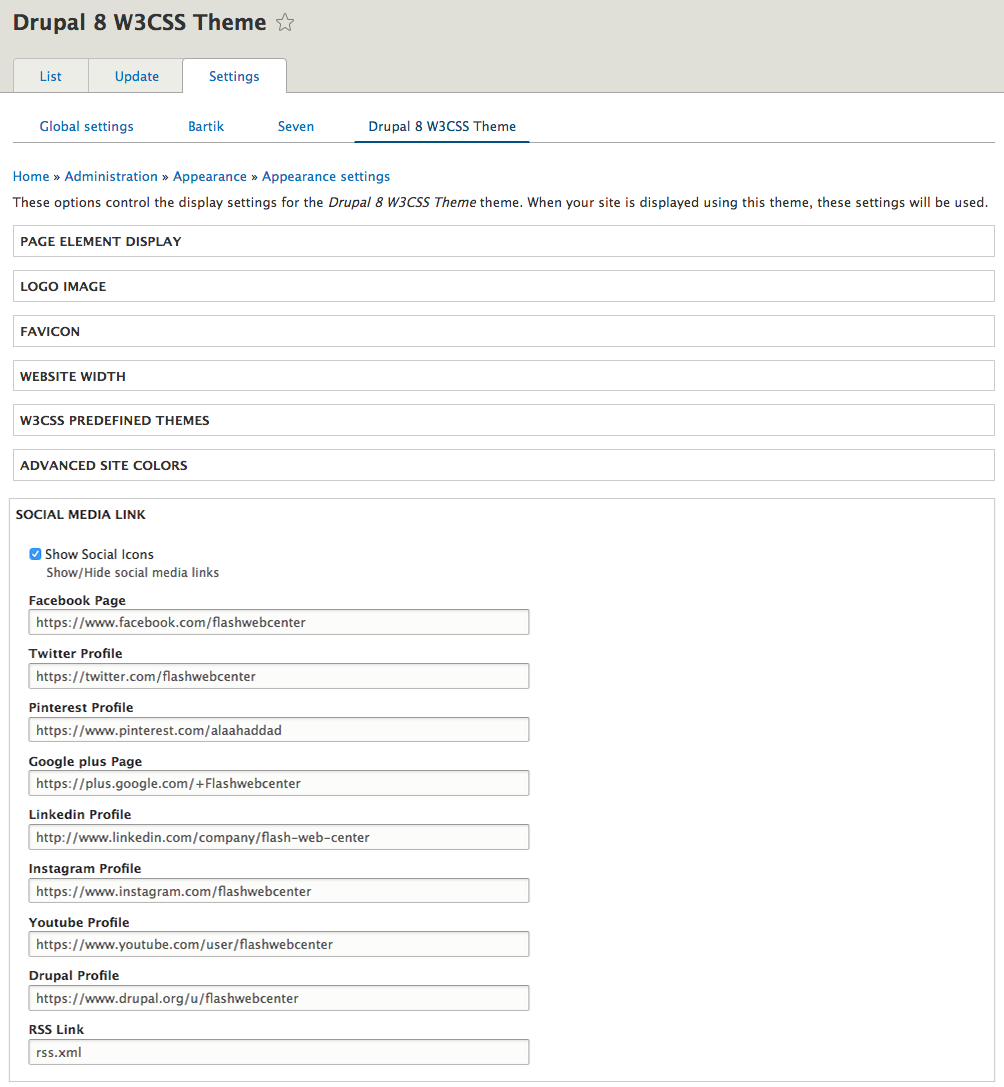
Go to your-drupal-site-name/admin/appearance/settings/drupal8_w3css_theme and click on Social Media Link to expand it.  Change any of the links and click save.

Change or disable social Icons

back to top ☝️

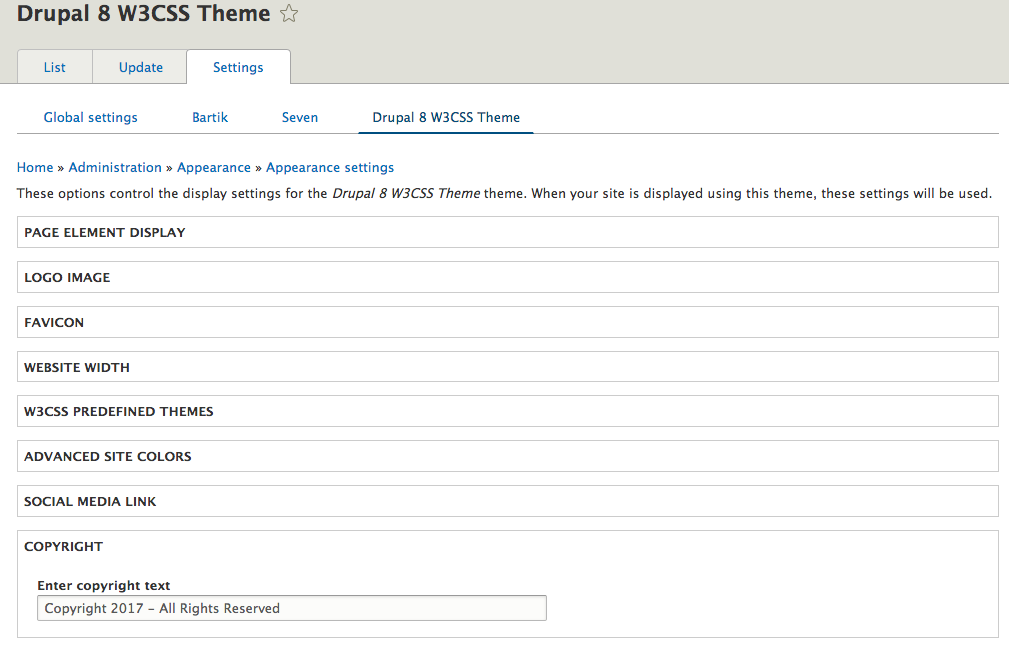
Go to your-drupal-site-name/admin/appearance/settings/drupal8_w3css_theme and click on Copyright to expand it, then change the text there and click save.

Change or disable Copyright

back to top ☝️

⚡️ How to disable the credit at the bottom

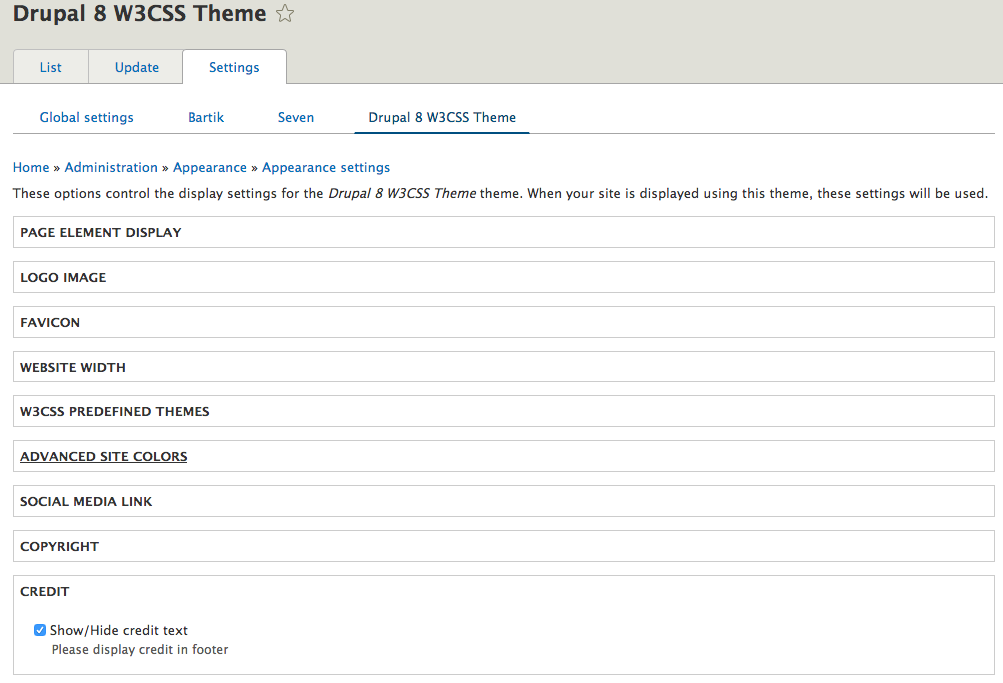
Go to your-drupal-site-name/admin/appearance/settings/drupal8_w3css_theme and click on Credit to expand it.  Uncheck the Show/Hide Credit Text and click save.

Change or disable credit

back to top ☝️

⚡️ How to disable the whole page opacity animation.

Go to your-drupal-site-name/admin/appearance/settings/drupal8_w3css_theme and click on ADVANCED SITE COLORS then insert into the text field Page Wrapper w3-animate-opacity-disabled

How to disable the whole page opacity animation?

back to top ☝️

⚡️ How to disable animate opacity on scroll down.

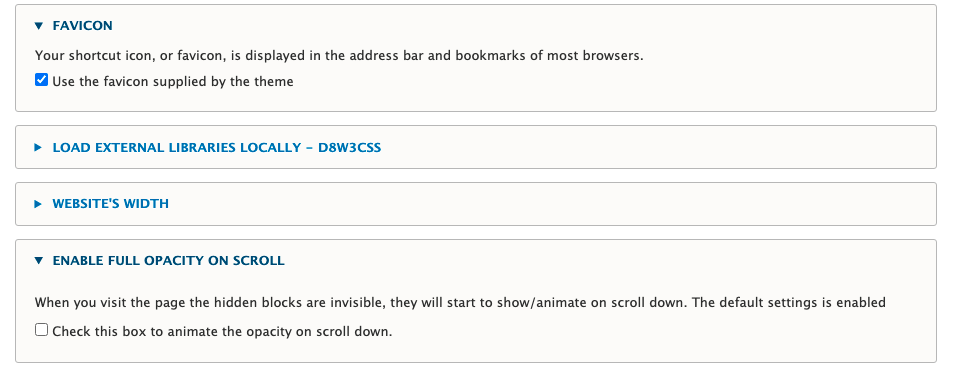
Go to your-drupal-site-name/admin/appearance/settings/drupal8_w3css_theme and click on ENABLE FULL OPACITY ON SCROLL then uncheck the checkbox next to Check this box to animate the opacity on scroll down.

How to disable animate opacity on scroll down

back to top ☝️

⚡️ How to use the drupal8_w3css_subtheme - Watch Video

Inside the folder your-drupal-site-directory/themes/drupal8_w3css_theme/drupal8_w3css_subtheme you will have all the necessary files for start up sub-theme.

Steps for creating a new sub-theme for W3CSS Theme.

  1. Copy the sub-theme from the W3CSS Theme and paste it in your custom theme directory.
  2. Re-name the copied folder to have the new sub-theme name. Example: my new sub-theme is w3css_subtheme.  I will rename the folder from "drupal8_w3css_subtheme" to "w3css_subtheme".
  3. Open the new named sub-theme folder "w3css_subtheme" and change the following files' names from:
    • drupal8_w3css_subtheme.theme >> To >> w3css_subtheme.theme
    • drupal8_w3css_subtheme.info.yml >> To >> w3css_subtheme.info.yml
    • drupal8_w3css_subtheme.libraries.yml >> To >> w3css_subtheme.libraries.yml
  4. Open the file w3css_subtheme.info.yml in your text editor and edit the following:
    • line 1 from "Drupal8 W3CSS Subtheme" >> To "W3css Subtheme", This is human readable name.
    • line 8 from "drupal8_w3css_subtheme/d8w3css-subtheme-global" >> To >> "w3css_subtheme/d8w3css-subtheme-global".
    • We are only changing the drupal8_w3css_subtheme to the new sub theme name. The name "d8w3css-subtheme-global" is the library name and MUST match the name in w3css_subtheme.libraries.yml.
      If you would like to change the library name you MUST change it in both files.
  5. Make sure the spaces in this file are not changed. The sub-theme now is ready to be enabled.

Steps for creating a new sub-theme of a sub-theme.

I will be using the sub-theme Amun as an example and you can follow these steps with any of the sub-themes.

  1. Copy the amun_subtheme from the Amun Sub-Theme and paste it in your custom theme directory.
  2. Re-name the copied folder to have the new sub-theme name. Example: my new sub-theme is amun_custom_subtheme.  I will rename the folder from "amun_subtheme" to "amun_custom_subtheme".
  3. Open the new named sub-theme folder "amun_custom_subtheme" and change the following files' names from:
    • amun_subtheme.theme >> To >> amun_custom_subtheme.theme
    • amun_subtheme.info.yml >> To >> amun_custom_subtheme.info.yml
    • amun_subtheme.libraries.yml >> To >> amun_custom_subtheme.libraries.yml
  4. Open the file amun_custom_subtheme.info.yml in your text editor and edit the following:
    • line 1 from "Amun Sub-Theme" >> To "Amun Custom Sub-theme", This is human readable name.
    • line 8 from "amun_subtheme/amun-subtheme-global" >> To >> "amun_custom_subtheme/amun-subtheme-global".
  5. Make sure the spaces in this file are not changed. The sub-theme now is ready to be enabled.

back to top ☝️

⚡️ How to create a new custom predefined color theme

You must have a sub-theme to store the generated css.

Go to https://www.w3schools.com/w3css/w3css_color_generator.asp and create your custom private theme.  Follow the steps to generate a private theme.

After you finish go to your-drupal-site-directory/themes/custom/your-sub-theme/css/your-css-file-name.css open and paste the generated css inside styles.css.

Clear caches and it is done.

back to top ☝️

⚡️ How to change the main container's columns to equal width - Watch Video

Go to your-drupal-site-name/admin/appearance/settings/drupal8_w3css_theme and click on Change The Main Container's Columns to Equal Width and insert 33-33-33 in the text box then click save.

W3CSS Theme, Main Container Equal Widht

back to top ☝️

⚡️ How to create custom main menu - Watch Video

You don't have to use the default main menu as your main menu. ANY menu can be the main menu.

If you want a horizontal menu just drop ANY menu in the Primary Menu region.

If you want a vertical menu just drop ANY menu in the Primary Menu Vertical region.

You don't have to create any a special template for the vertical or horizontal main menu.

You can use the two regions at once by creating two main menus and use the two regions.

Note: A vertical main menu is different from a side menu in your website. (Example for the vertical menu: https://www.w3schools.com/w3css/tryw3css_templates_interior_design.htm)

A side menu is just a secondary menu you have on your website. The secondary menu can be vertical or horizontal and you can place it in left or right column.

back to top ☝️

⚡️ How to create a responsive horizontal secondary menu - Watch Video

Create a menu with any name. Example the new menu name is 'Titto'. Add all the links as usual in drupal. The maximum number of menu levels to show is three. This maximum number includes the initial level. Level one is always visible on screen resolution bigger than 992px. The two levels show on hover. On screen resolution less than 992px all levels are hidden and they show by clicking. Go to d8w3css/templates/navigation and clone menu--responsive-h.html.twig to your sub theme folder and name it menu--titto.html.twig. Clear all caches and you are done.

back to top ☝️

⚡️ How to create a responsive vertical secondary menu - Watch Video

Create a menu with any name. Example the new menu name is 'Titto'. Add all the links in drupal. The maximum number of menu levels to show is three. This maximum number includes the initial level. Level one is always visible. The two levels are hidden and you show them by clicking. Go to d8w3css/templates/navigation and clone menu--responsive-v.html.twig to your sub theme folder and name it menu--titto.html.twig. Clear all caches and you are done.

back to top ☝️

⚡️ How to place an image on the front page like shown in the demo

Create a custom block with the image and place the block into the welcome text's region.

back to top ☝️

⚡️ How to make the main vertical menu open on the right side

  1. Create a sub-theme.
  2. copy page .../d8w3css/templates/layout/page.html.twig to the sub-theme.
  3. Open page.html.twig in the sub-theme and find the words "main-navigation-v". On the same line, change "w3-animate-left" to "w3-animate-right".
  4. Find the word "open-nav-inner". On the same line, change "w3-left" to "w3-right".
  5. Copy and paste the following css in the sub-theme css style file:

    #main-navigation-v.w3-sidebar{right:0;}#open-nav-inner {margin:0 0 0 10px!important;}

⚡️ How to remove background colors and use an image as a background.

Create a sub-theme

Go to d8w3css/css/w3-css-theme-custom and copy w3-theme-00029.css file inside your-sub-theme/css folder.

Open your-sub-theme/css/w3-theme-00029.css: and update the image path. Look for page-wrapper and change background-image: url(../../images/page-wrapper.jpg); to background-image: url(../images/page-wrapper.jpg);

Note: The image name and the image extension must match the new image.

Example: background-image: url(../images/my-custom-image.png);

Open your-sub-theme.libraries.yml and paste css/w3-theme-00029.css: {} under css/styles.css: {}.

Note: Spacing must be aligned exactly underneath.

Create a folder inside the sub-theme and name it images. Add the image you want to use as a background inside images folder.

back to top ☝️

⚡️ How to use W3.CSS classes with views - Watch Video

back to top ☝️

Austin TX Drupal Developer
Drupal Architect
Drupal Consultant
Drupal Custom Work
Drupal Developer
Drupal Themer
Hire Drupal Developer
Pflugerville Drupal Developer
Senior Drupal Developer

ReadMe

INTRODUCTION:
--------------------------------------------------------------------------------

When building this theme, I focused on ease of use and a fast load time. Now,
you have the power to create unlimited UI design by using the W3CSS Paragraphs.
- Smaller and faster than other CSS frameworks.
- Easier to learn, and easier to use than other CSS frameworks.
- Uses standard CSS only (No jQuery or JavaScript library).
- Speeds up and simplifies web development.
- Supports modern responsive design (mobile first) by default.
- Provides CSS equality for all browsers. Chrome, Firefox, IE, Safari, and more.
- Provides CSS equality for all devices. PC, laptop, tablet, and mobile.
- Learn more about W3.CSS https://www.w3schools.com/w3css/

REQUIREMENTS:
--------------------------------------------------------------------------------

This theme does not require any moduels to be installed.

INSTALLATION:
--------------------------------------------------------------------------------

Download the theme to your-drupal-site-name/themes/ and go to
your-site-domain/admin/appearance and scroll to the bottom until you see W3CSS
Theme and click on Install and set as default and click save.

FEATURES:
--------------------------------------------------------------------------------
) W3CSS Theme is using the modern W3.CSS framework with built-in responsiveness

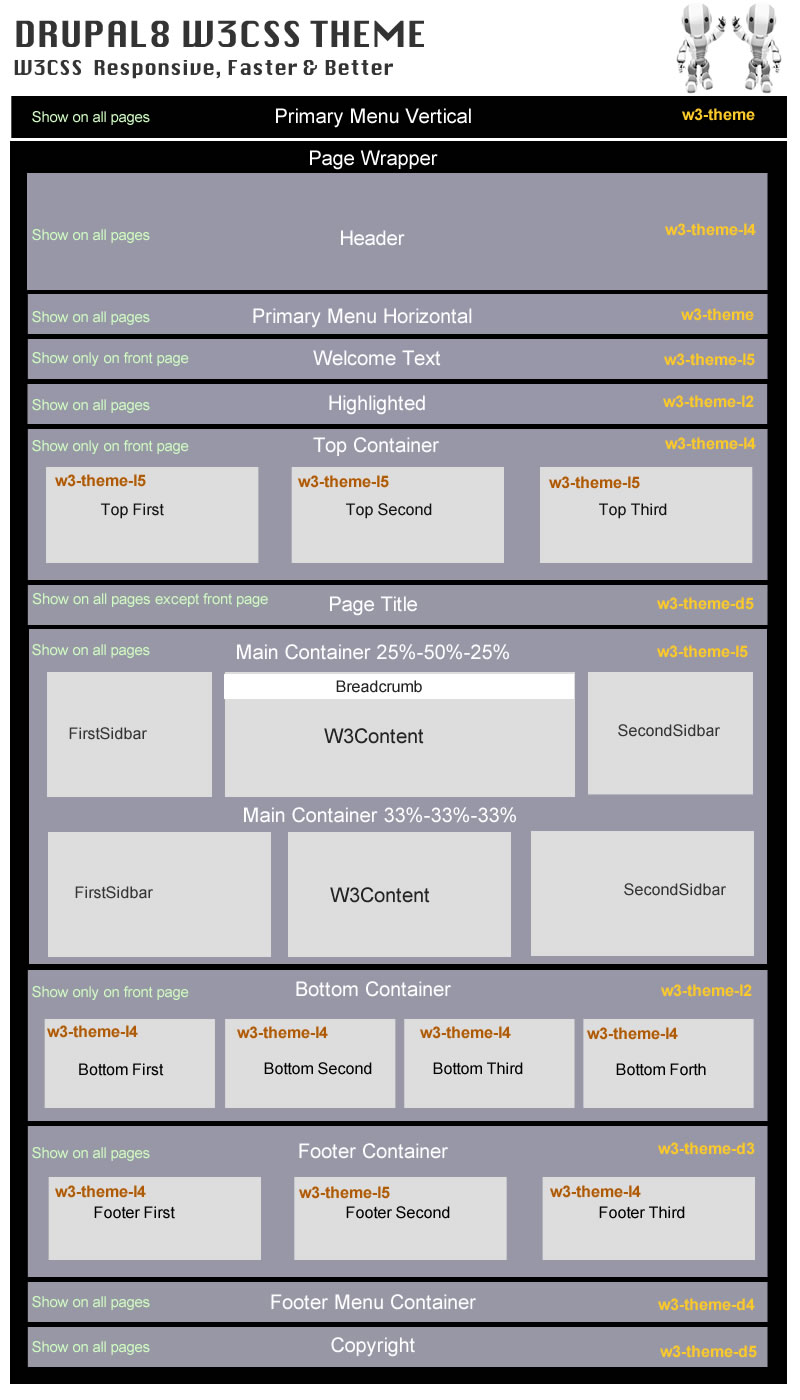
) W3CSS Theme has 22 regions. Check README.txt for more details.

) W3CSS Theme has 26 sections. In the theme settings under Advanced Site Colors
you have 26 fields for CSS customization.(Background Colors - Background Hover
Colors - Text Colors - Text Hover Colors - Link Text Colors - Link Text Hover
Colors - Link Background Colors - Button Colors - Button Hover Colors).

) W3CSS Theme comes with ability to change the website width. Just insert any
of the predefined classes into website width in theme settings.
(w3-width-100-percent, w3-width-2560, w3-width-1920, w3-width-1600,
w3-width-1360, w3-width-1280, w3-width-1024 and w3-width-800).

) W3CSS Theme comes with horizontal main menu or vertical side nav. Simply add
the main menu to the horizontal region or the vertical region.

) W3CSS Theme V2 comes with 101 fonts. 50 fonts can be applied to the global
site, 26 fonts for heading (H1, H2 and H3 and 25 special fonts can be applied
to any html tag. Any uploaded font has a CSS class can be applied to any html
tag.

) W3CSS Theme V2 comes with 24 CSS text animation effects. can be applied to
site name, page title or use the css class to apply it to any html tag.

) W3CSS Theme V2 comes with a custom page layout for user login/register/reset
password.

) W3CSS Theme V2 comes with a custom border animation for top regions, bottom
regions and footer regions..

) W3CSS Theme comes with over 50 predefined color themes. Simply insert the
name of any of the predefined themes. More will be added.

) W3CSS Theme comes with the ability to create your own private W3.CSS theme
and apply it to your site.

) W3CSS Theme V1 comes with 6 color libraries. (US Highway, US Safety,
Camouflage, Vivid, European Signal and Food).

) W3CSS Theme V2 comes with 11 color libraries. (Camouflage, European Signal,
Fashion, Flat UI, Food, IOS, Metro UI, US highway, US Safety, Vivid and Win8).
You can create unlimited color themes.

) W3CSS Theme comes with 8 social media links that are easy to configure.

) W3CSS Theme has a top region that includes three flexible regions. (The total
space in the top region will be divided by the number of regions you filled.)

) W3CSS Theme has a bottom region that includes four flexible regions. (The
total space in the bottom region will be divided by the number of regions you
filled.)

) W3CSS Theme has a footer region that includes three flexible regions. (The
total space in the footer region will be divided by the number of regions you
filled.)

) W3CSS Theme comes with Font Awesome 4.7.0, 5.15.4 or 6.1.1 optional you can
enable them in theme settings.

) W3CSS Theme comes with jQuery match height. Example: If you have three blocks
in the top area, they will always have matching height on the large screen
size. The script was removed and it uses CSS Flexbox.

) W3CSS Theme comes with a responsive main menu and It is three level
drop-down menu. The drop-down works on hover for big screen and on click for
small screen.

) W3CSS Theme will hide completely (divs, wrappers, classes) any region you
don't use. Nothing will be printed in the back.

) W3CSS Theme uses the minimum HTML structure to show the content. Example,
You will not see div > div > div > div > div.

) W3CSS Theme comes with the ability to create a custom page template according
to content type's name. If you have two content types article and video you can
have page--article.html.twig and page--video.html.twig

) W3CSS Theme comes with the ability to create a custom page template for any
view. Example if you have a view name "recent_video", then you can create a page
template name page--recent-video.html.twig.

) W3CSS Theme comes with the ability to create a custom page template for any
vocabulary. Example if you have a vocabulary name "Tags", then you can create a
page template name page--taxonomy--tags.html.twig.

) W3CSS Theme comes with the ability to change the main container's columns
layout to equal width. Change the columns from (25% 50% 25%) to (33% 33% 33%)

) W3CSS Theme comes with the ability to create a responsive horizontal three
level secondary menu or a responsive vertical three level secondary menu.

) W3CSS Theme comes with customized Sub-themes. Each sub-theme has different
layout/template.

CONFIGURATION:
--------------------------------------------------------------------------------

The new version was added with all new featuers. If you are using V1 and you did
not override the page.html.twig, then you can update the theme however you
normally do. If you did override the page.html.twig, then you will need to
clone the new page.html.twig and update it.

You can build any website layout with the w3.css library. I try to add the most
well-known templates/layouts. I added some sub-themes to include different
layouts. If you see a w3css template that you want to have available in this
theme then let me know and I'll customize it and add it to the collection as a
sub-theme.

Note: All customized Sub-themes have an extra region in addition to the regions
in the parent theme for the sticky search block. If you click on the search
icon, you'll get a sticky search bar on the top in return.

What are drupal8 w3css Sub-themes? They are custom themes with different page
layouts.

What are drupal8 w3css predefined color themes? They are color skins that can
be applied to a W3CSS Theme or any of its sub-themes.

* How to change the logo
........................

Go to your-drupal-site-name/admin/appearance/settings/drupal8_w3css_theme and
uncheck “Use the logo supplied by the theme” then upload your own website logo
they insert the path in logo text "Path to custom logo" box and click save.
Logo size is fixed. If you want to change the logo's size you will have to
change it in the sub theme.

* How to enable the page title
..............................

Go to your-drupal-site-name/admin/structure/block and scroll down until you see
Page Title's region. Page Title block is disabled by default, just click on
Enable to enable the page title

* How to enable the site slogan
...............................

Go to your-drupal-site-name/admin/structure/block and in header region. You
should see two blocks User account menu and Site branding. Click on configure
for Site branding and check the check box for Site Slogan.

* CSS Text Animation Effects Classes | W3CSS Theme V2
...........................
Go to your-drupal-site-name/admin/appearance/settings/drupal8_w3css_theme and
click on CSS TEXT ANIMATION EFFECTS - W3CSS THEME to expand it. You can choose
the animation for the site name or page title. Also you will see the css text
animation effect classes that you can use with any html tag.

* How to enable/disable region border animation? | W3CSS Theme V2
...........................
Go to your-drupal-site-name/admin/appearance/settings/drupal8_w3css_theme and
click on ENABLE BORDER ANIMATION - W3CSS THEME to expand it. There is a
checkbox to enable/disable the border animation for top regions, bottom
regions and footer regions.

* How to expand multi items field to 100%? | W3CSS Theme V2
...........................
By default, any drupal field with multiple items (like taxonomy, file, user
etc. ) will display those items in one line. If you want to change that, go to
your-drupal-site-name/admin/appearance/settings/drupal8_w3css_theme and click
on ADVANCED SITE COLORS - W3CSS THEME to expand it then add w3-expand-fields
to Page Wrapper field.

* How to change the favicon
...........................

Go to www.your-drupal-site-name/admin/appearance/settings/drupal8_w3css_theme
and uncheck “Use the favicon supplied by the theme” then upload your own favicon
and click save.

* How to change website width
.............................

In W3CSS Theme V2 was changed to a dropdown select list.

Go to your-drupal-site-name/admin/appearance/settings/drupal8_w3css_theme and
click on Website Width to expand it. Copy and paste your desired website width
and click save.

* How to change website font or heading font? | W3CSS Theme V2
.............................

Go to your-drupal-site-name/admin/appearance/settings/drupal8_w3css_theme and
click on GOOGLE FONTS - W3CSS THEME to expand it. You can
choose the site font or heading font.

Special font are not applied to any html tage by default. You just choose the
font then use the css class with any html tag.

Tip: Any font you choose for the site or heading will have a CSS class that
you can apply to any html tag.

Example: If I have chosen the font "Anton" for the heading and I want to apply
this font to a paragraph, here is how it's done;

* How to use the w3css predefined themes
........................................

In W3CSS Theme V2 was changed to a dropdown select list.
Go to your-drupal-site-name/admin/appearance/settings/drupal8_w3css_theme and
click on w3css predefined color themes to expand it. Copy and paste any of
your desired w3css color theme and click save. FYI: if you have any w3
classes in Advanced Site Color Section they will not override the uploaded
color theme because of the CSS order. Any predefined theme file it will be
loaded after w3.css.

* How to change website colors
..............................

Go to your-drupal-site-name/admin/appearance/settings/drupal8_w3css_theme and
click on Advanced Site Colors to expand it. Each section in the website can
be modified and click save. You can change the text color, background color,
padding, margin or borders. You can use any of W3 CSS Classes
https://www.w3schools.com/w3css/w3css_references.asp

* How to change Social Media Links
..................................

Go to www.your-drupal-site-name/admin/appearance/settings/drupal8_w3css_theme
and click on Social Media Link to expand it. Change any of the links and click
save.

* How to change copyright
.........................

Go to www.your-drupal-site-name/admin/appearance/settings/drupal8_w3css_theme
and click on Copyright to expand it, then change the text there and click save.

* How to disable the credit at the bottom
.........................................

Go to www.your-drupal-site-name/admin/appearance/settings/drupal8_w3css_theme
and click on Credit to expand it. Uncheck the Show/Hide Credit Text and click
save.

* How to disable the whole page opacity animation.
.........................................

Go to your-drupal-site-name/admin/appearance/settings/drupal8_w3css_theme and
click on ADVANCED SITE COLORS then insert into the text field Page Wrapper
w3-animate-opacity-disabled

* How to disable animate opacity on scroll down.
.........................................

Go to your-drupal-site-name/admin/appearance/settings/drupal8_w3css_theme and
click on ENABLE FULL OPACITY ON SCROLL then uncheck the checkbox next to Check
this box to animate the opacity on scroll down.

* How to create a new custom predefined color theme
...................................................

You must have a sub-theme to store the generated css.

Go to https://www.w3schools.com/w3css/w3css_color_generator.asp and create your
custom private theme. Follow the steps to generate a private theme.

Go to your-drupal-site-directory/themes/custom/your-sub-theme/css/styles.css
open and paste the generated css inside styles.css.

Clear caches and it is done.

* How to use the drupal8_w3css_subtheme
.......................................

Inside the folder
your-drupal-site-directory/themes/drupal8_w3css_theme/drupal8_w3css_subtheme
you will have all the necessary files for start up sub-theme.

-- Steps for creating a new sub-theme for W3CSS Theme.

1) Copy the sub-theme from the W3CSS Theme and paste it in your custom theme
directory.

2) Re-name the copied folder to have the new sub-theme name. Example: my new
sub-theme is w3css_subtheme. I will rename the folder from
"drupal8_w3css_subtheme" to "w3css_subtheme".

3) Open the new named sub-theme folder "w3css_subtheme" and change the following
files' names from:
drupal8_w3css_subtheme.theme >> To >> w3css_subtheme.theme
drupal8_w3css_subtheme.info.yml >> To >> w3css_subtheme.info.yml
drupal8_w3css_subtheme.libraries.yml >> To >> w3css_subtheme.libraries.yml

4) Open the file w3css_subtheme.info.yml in your text editor and edit the
following:
line 1 from "Drupal8 W3CSS Subtheme" >> To "W3css Subtheme", This is human
readable name.
line 8 from "drupal8_w3css_subtheme/d8w3css-subtheme-global" >> To >>
"w3css_subtheme/d8w3css-subtheme-global".

We are only changing the drupal8_w3css_subtheme to the new sub theme name.
The name "d8w3css-subtheme-global" is the library name and MUST match the name
in w3css_subtheme.libraries.yml.

If you would like to change the library name you MUST change it in both files.

5) Make sure the spaces in this file are not changed. The sub-theme now is
ready to be enabled.

-- Steps for creating a new sub-theme of a sub-theme.
I will be using the sub-theme Amun as an example and you can follow these steps
with any of the sub-themes.

1) Copy the amun_subtheme from the Amun Sub-Theme and paste it in your custom
theme directory.

2) Re-name the copied folder to have the new sub-theme name. Example: my new
sub-theme is amun_custom_subtheme. I will rename the folder from
"amun_subtheme" to "amun_custom_subtheme".

3) Open the new named sub-theme folder "amun_custom_subtheme" and change the
following files' names from:
amun_subtheme.theme >> To >> amun_custom_subtheme.theme
amun_subtheme.info.yml >> To >> amun_custom_subtheme.info.yml
amun_subtheme.libraries.yml >> To >> amun_custom_subtheme.libraries.yml

4) Open the file amun_custom_subtheme.info.yml in your text editor and edit the
following:
line 1 from "Amun Sub-Theme" >> To "Amun Custom Sub-theme", This is human
readable name.
line 8 from "amun_subtheme/amun-subtheme-global" >> To >>
"amun_custom_subtheme/amun-subtheme-global".

5) Make sure the spaces in this file are not changed. The sub-theme now is
ready to be enabled.

* How to Change The Main Container's Columns to Equal Width
...........................................................

Go to www.your-drupal-site-name/admin/appearance/settings/drupal8_w3css_theme
and click on Change The Main Container's Columns to Equal Width and insert
33-33-33 in the text box then click save.

* How to Create The Main Menu
.............................

(Drupal comes with a default main menu.)

1) You don't have to use the default main menu as your main menu. ANY menu can
be the main menu.

2) If you want a horizontal menu just drop ANY menu in the Primary Menu region.

3) If you want a horizontal menu just drop ANY menu in the Primary Menu
Vertical region.

4) You don't have to create any a special template for the vertical or
horizontal main menu. menu--main.html.twig

5) You can create two main menus and use the two regions.
http://drupal8-w3css-theme.flashwebcenter.com

6) Note: A vertical main menu is different from a side menu in your website.
(Example for the vertical menu:

https://www.w3schools.com/w3css/tryw3css_templates_interior_design.htm)

A side menu is just a secondary menu you have on your website. The secondary
menu can be vertical or horizontal and you can place it in left or right column.

* How to Create a Responsive Horizontal Secondary Menu
......................................................

Create a menu with any name. Example the new menu name is 'Titto'. Add all the
links as usual in drupal. The maximum number of menu levels to show is three.
This maximum number includes the initial level. Level one is always visible on
screen resolution bigger than 992px. The two levels show on hover. On screen
resolution less than 992px all levels are hidden and they show by clicking.
Go to d8w3css/templates/navigation and clone menu--responsive-h.html.twig to
your sub theme folder and name it menu--titto.html.twig. Clear all caches and
you are done.

* How to Create a Responsive Vertical Secondary Menu
....................................................

Create a menu with any name. Example the new menu name is 'Titto'.
Add all the links as usuall in drupal. The maximum number of menu levels to show
is three. This maximum number includes the initial level. Level one is always
visible. The two levels are hidden and you show them by clicking.
Go to d8w3css/templates/navigation and clone menu--responsive-v.html.twig to
your sub theme folder and name it menu--titto.html.twig. Clear all caches and
you are done.

* How to Make the Main Vertical Menu Open On The Right Side
....................................................

1- Create a sub-theme.
2- copy page .../d8w3css/templates/layout/page.html.twig to the sub-theme.
3- Open page.html.twig in the sub-theme and find the words "main-navigation-v".
On the same line, change "w3-animate-left" to "w3-animate-right".
4- Find the word "open-nav-inner". On the same line, change "w3-left"
to "w3-right".
5- Copy and paste the following css in the sub-theme css style file:
#main-navigation-v.w3-sidebar{right:0;}
#open-nav-inner {margin:0 0 0 10px!important;}

* How to remove background colors and use an image as a background.
....................................................

Create a sub-theme.
Go to d8w3css/css/w3-css-theme-custom and copy w3-theme-00029.css
file inside your-sub-theme/css folder.
Open your-sub-theme.libraries.yml and paste css/w3-theme-00029.css: {}
under css/styles.css: {}.
Note: Spacing must be aligned exactly underneath.
Create a folder inside the sub-theme and name it images. Add the image you
want to use as a background inside images folder.
The image name must be page-wrapper.jpg.

* How to use W3.CSS classes with views
....................................................
https://www.youtube.com/watch?v=wCObqmBn3Xk

Austin TX Drupal Developer
Drupal Architect
Drupal Consultant
Drupal Custom Work
Drupal Developer
Drupal Themer
Hire Drupal Developer
Pflugerville Drupal Developer
Senior Drupal Developer

⚡️ W3CSS Paragraphs Responsive Image (Wide)

Overview of the W3CSS Image Wide Bundle

The W3CSS Image Wide bundle is a versatile and user-friendly sub-module within the Drupal W3CSS Paragraphs module. Specifically designed to enhance the presentation of images on Drupal-based websites, this bundle allows for the creation of responsive, wide (rectangle) images. It leverages Drupal's core modules such as media, media library, and responsive image to ensure seamless integration and optimal performance.

Display Tab Features

  1. Background Colors:
    • Offers a selection of 30 different colors, enabling users to choose the ideal background that complements their image.
  2. Background Color Hover:
    • Provides 30 color options for hover states, adding an interactive element to the image.
  3. Text Colors:
    • Includes 30 color options for text, ensuring readability and aesthetic appeal.
  4. Text Color Hover:
    • Comes with 30 choices for text color on hover, enhancing user engagement.
  5. Border Color:
    • Users can select from 30 different colors for the border, adding a distinct frame to the image.
  6. Border Color Hover:
    • Features 30 color options for border hover states, offering dynamic visual effects.
  7. Background Color Opacity:
    • Allows adjustments from 5% to 95% (in 10% increments) after selecting a background color. This feature provides 330 color variations, adding depth and texture to the background. Note: Opacity applies only to the background color.
  8. Width:
    • Offers a range of width options from 30% to 100%, accommodating different layout needs.
  9. Borders:
    • Includes 11 different styles to choose from, giving a variety of framing options.
  10. Round Borders:
    • Provides 6 styles, enabling the creation of softer, rounded edges.
  11. Margin:
    • Offers 6 styles, aiding in the proper spacing of the image within the page layout.
  12. Padding:
    • Comes with 8 different styles, allowing for space adjustment within the border of the image.
  13. Box Shadow:
    • Enables adding a 2px or 4px bordered shadow, enhancing the image's prominence and depth.

Content Tab Features

  1. Title:
    • A field for the content title, allowing users to assign a descriptive or catchy title to their image.
  2. Media Field:
    • This field is used to upload the image. Accompanying the upload are two additional fields:
      • Alternative Text: Essential for SEO and accessibility, providing a text alternative for the image.
      • Title: An additional title field for the image, which can be different from the content title.
  3. Link Field:
    • If the image is intended to be clickable, this field allows the addition of a link, directing users to a specified URL upon clicking the image.
  4. Image Link Title Field:
    • This is an attribute for the image link, enhancing the link with a title attribute that can provide additional context or instructions when hovered over.

Conclusion

The W3CSS Image Wide bundle in the Drupal W3CSS Paragraphs module is a comprehensive tool for creating and customizing responsive wide images. Its extensive range of styling options under both the display and content tabs ensures that users can create visually appealing and functionally rich image presentations, tailored to their specific needs and the overall design of their Drupal site.

Display Button for the Responsive Image bundle

Responsive Image Wide
Austin TX Drupal Developer
Drupal Architect
Drupal Consultant
Drupal Custom Work
Drupal Developer
Drupal Themer
Hire Drupal Developer
Pflugerville Drupal Developer
Senior Drupal Developer

⚡️ W3CSS Paragraphs Image

Drupal Media Image Field

The W3CSS Image bundle, as part of the Drupal Module W3CSS Paragraphs, offers a comprehensive and versatile tool for creating and customizing images within a Drupal website. This bundle leverages Drupal's core modules, namely media and media library, to provide a user-friendly and robust interface for managing image content. The bundle is divided into two main tabs for ease of use: Display and Content. Each of these tabs is equipped with a variety of fields, allowing for detailed customization of the images.

Display Tab

The Display tab focuses on the visual aspects of the image, offering a range of options to modify its appearance:

  1. Background Colors: Users can choose from 30 different colors, providing a wide spectrum for background customization.
  2. Background Color Hover: This feature offers 30 color options for the hover state, enhancing the interactive experience.
  3. Text Colors: There are 30 color options available for text, ensuring a perfect match with the overall design.
  4. Text Color Hover: Similar to background hover, this allows for 30 color variations for text on hover.
  5. Border Color: Users can pick from 30 different colors for the border, adding definition to the image.
  6. Border Color Hover: This feature provides 30 options for border colors on hover, adding an interactive element.
  7. Background Color Opacity: After selecting a background color, users can adjust its opacity from 5% to 95% in 10% increments, offering 330 color variations. This opacity setting applies only to the background.
  8. Width: The width of the image can be adjusted, with options ranging from 30% to 100%.
  9. Borders: There are 11 different border styles to choose from, adding versatility to the design.
  10. Round Borders: Users can select from 6 styles for rounded borders.
  11. Margin: There are 6 styles available for setting the margin.
  12. Padding: The bundle offers 8 different padding styles.
  13. Box Shadow: Users can add a 2px or 4px bordered shadow, enhancing the image's depth and prominence.

Content Tab

The Content tab is focused on the content management aspect of the image:

  1. Title: A field for the content title, allowing users to label their image.
  2. Media Field: This is where users upload the image. Upon uploading a new image, two additional fields become available:
    • Alternative Text: Essential for accessibility and SEO, this field is for describing the image.
    • Title: This field is for the title of the image, which can provide context or additional information.
  3. Link Field: If the image needs to be clickable, this field is used to insert the link.
  4. Image Link Title Field: This field is for the title attribute of the image link, offering additional context or information when hovered over.

Summary

The W3CSS Image bundle in the Drupal W3CSS Paragraphs module is a powerful tool, designed for ease of use and flexibility. It caters to both aesthetic preferences and functional requirements, making it an ideal choice for web developers and content managers looking to enhance the visual appeal and usability of their Drupal sites. With its extensive range of customization options, the bundle allows for the creation of visually engaging and interactive images that can greatly enhance the user experience on a Drupal website.

Image
Austin TX Drupal Developer
Drupal Architect
Drupal Consultant
Drupal Custom Work
Drupal Developer
Drupal Themer
Hire Drupal Developer
Pflugerville Drupal Developer
Senior Drupal Developer

⚡️ W3CSS Paragraphs Simple

Drupal Text Formatted Long

The W3CSS Simple module is a feature-rich sub-module within the Drupal W3CSS Paragraphs suite, designed to enhance content creation and presentation on Drupal websites. This module allows users to create sophisticated and visually appealing rich text boxes, complete with a wide range of customization options. The user interface is intuitively divided into two primary tabs: Display and Content.

Display Tab

The Display tab is where users can fine-tune the appearance of their text box. It offers an extensive array of styling options, providing a high degree of control over how the content is presented on the webpage.

  1. Background Colors: Users can select from a palette of 30 different colors to set the background of their text box.
  2. Background Color Hover: This option allows for the selection of a hover color, with 30 different choices available, adding interactive elements to the user experience.
  3. Text Colors: There are 30 different text color options, enabling users to match the text color with their website’s design and color scheme.
  4. Text Color Hover: Similar to the background color hover, this option provides 30 color choices for text hover effects.
  5. Border Color: Users can choose from 30 different colors to style the borders of the text box.
  6. Border Color Hover: This feature allows for an interactive border color change on hover, with 30 options available.
  7. Background Color Opacity: After choosing a background color, its opacity can be adjusted between 5% and 95% in 10% increments. This feature offers 330 color variations, but it's important to note that the opacity setting only applies to the background color.
  8. Width: The width of the text box can be adjusted, with options ranging from 30% to 100% of the container width.
  9. Borders: Users can select from 11 different border styles to give the text box a unique look.
  10. Round Borders: This option provides 6 styles for creating rounded borders, adding a softer, more modern aesthetic.
  11. Margin: There are 6 margin styles available, allowing for flexible spacing around the text box.
  12. Padding: Users can choose from 8 different padding styles to control the space within the text box.
  13. Box Shadow: This feature adds a shadow to the text box, with options for a 2px or 4px bordered shadow, enhancing the box's prominence and depth on the page.
  14. W3.CSS Classes: An additional field is provided for applying any specific W3.CSS classes, granting further customization capabilities.

Content Tab

The Content tab focuses on the textual and interactive elements of the text box.

  1. Title: A field for the title of the content, providing a clear and prominent heading.
  2. Body Field with WYSIWYG: This rich text editor enables users to craft and format their content easily, offering a what-you-see-is-what-you-get experience.
  3. URL Field: An option to make the text box clickable, directing users to a specified URL.
  4. Link Text: The text displayed for the clickable link.
  5. Link Title Attribute: This attribute provides additional information about the link, enhancing accessibility and SEO.

The W3CSS Simple module in Drupal's W3CSS Paragraphs suite is a powerful tool for creating dynamic, visually appealing content. Its comprehensive range of customization options makes it suitable for a wide array of web design requirements, ensuring that both the aesthetic and functional aspects of the content are well-addressed.

What is W3CSS Paragraphs Content Type?

  • The left and right regions are disabled for this content type. 
  • The default width is 100% and you can override the width from the paragraph bundle display. 
  • You can disable any of these regions: Main Navigation Regions, Header Region, Welcome Region, Highlighted Region, Top Regions, Page Title Region, Breadcrumb Region, Bottom Regions, Footer Regions, Footer Menu and Hide Copyright. 

Sometimes you want to create a page on the website that has a totally different layout. Maybe you don't want to print/show the header, footer, main menu, etc. or perhaps you want to use different colors. When you combine this feature with the paragraph bundles one, two or three columns you can create any layout you desire.

Display Button for the Simple bundle

Simple
Austin TX Drupal Developer
Drupal Architect
Drupal Consultant
Drupal Custom Work
Drupal Developer
Drupal Themer
Hire Drupal Developer
Pflugerville Drupal Developer
Senior Drupal Developer